
How to block apps on iPhone
You can block apps like Instagram, TikTok or YouTube on iPhone with the built-in Screen Time settings, or with an app blocker that uses the same Screen Time system but is harder to tap past. Here is how each option works, and which one fits which problem.
Option 1: Screen Time App Limits
App Limits give an app or a whole category a daily time budget. When the time is used up, the app is covered by a grey Screen Time screen.
- Open Settings and tap Screen Time. Turn on Screen Time if it is off.
- Tap App Limits, then Add Limit.
- Choose a category such as Social, or expand it and pick single apps like Instagram or TikTok.
- Tap Next, set a daily time, and tap Add.
Good for: a gentle daily budget. Weak spot: when the limit hits, the screen offers Ignore Limit, and one tap gets you back into the app. More on that in why Screen Time limits stop working.
Option 2: Downtime
Downtime blocks everything except calls and the apps you allow, on a schedule such as 22:00 to 07:00.
- Go to Settings → Screen Time → Downtime.
- Turn on Scheduled and pick the hours.
- Under Always Allowed choose the apps that should keep working.
Good for: bedtime. Weak spot: it is all-or-nothing and, like App Limits, can be dismissed unless a Screen Time passcode you do not know is set.
Option 3: Block apps for a set time with Unscroll
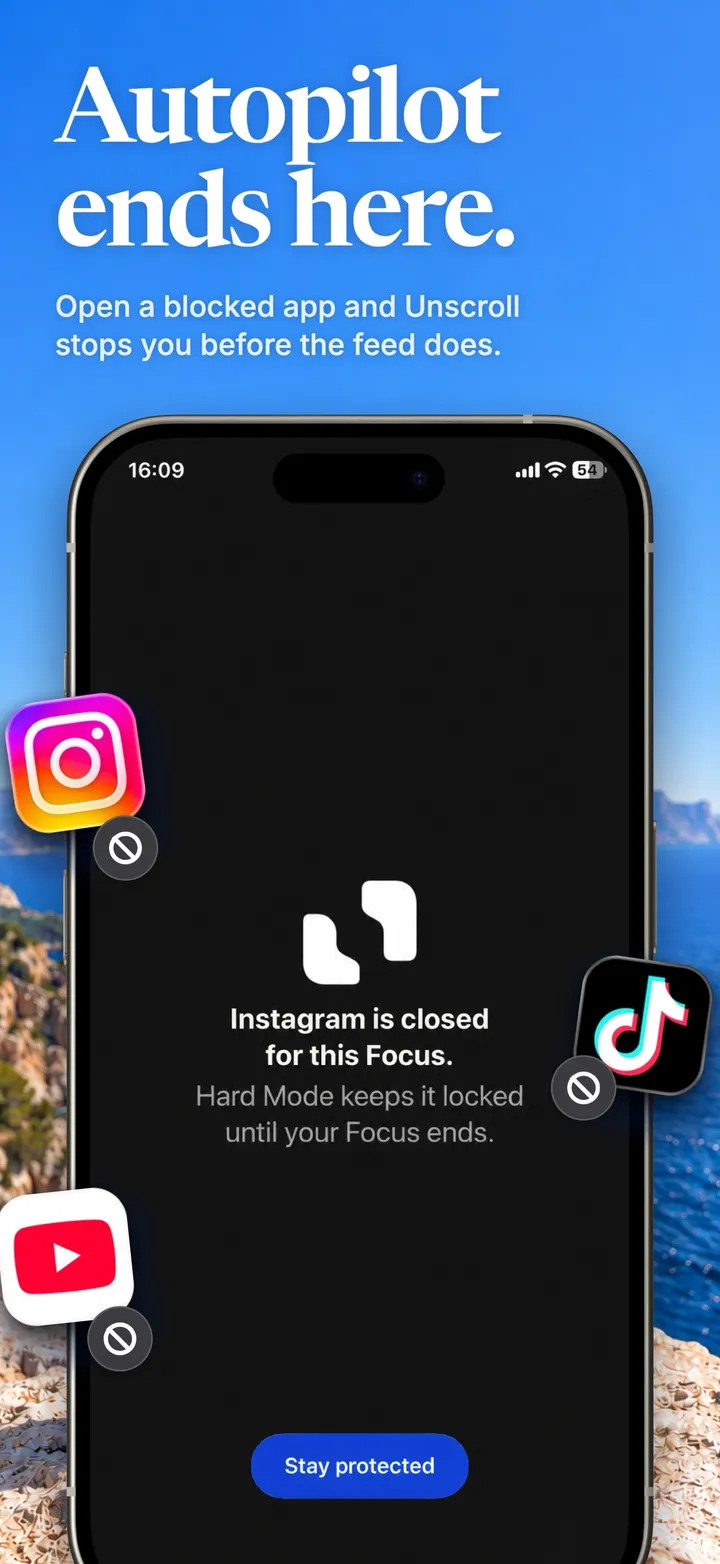
Unscroll is an iPhone app blocker built on Apple’s Screen Time framework. Instead of a daily budget, you start a Focus: the apps you pick stay closed for 15 minutes up to 3 hours, and there is no button on the block screen to wave it away.
- Install Unscroll and allow Screen Time access.
- Pick the apps, categories or websites that pull you in.
- Choose a duration and tap Start Focus.
While the Focus runs, opening a blocked app shows the Unscroll Shield. To get in, you have to go back to Unscroll and end the Focus, a deliberate step instead of a reflex. With Automations you can block apps on a schedule, for example weekdays 9:00–17:00, and with Hard Mode (Pro) ending a Focus early takes a 30-second wait.
How to block websites too
Social apps have websites. In Screen Time, go to Content & Privacy Restrictions → App Store, Media, Web & Games → Web Content, choose Limit Adult Websites and add sites under Never Allow. In Unscroll, add the websites to the same selection as the apps so they close together during a Focus.
Which option should you use?
- You want a soft daily budget: Screen Time App Limits.
- You want your phone quiet at night: Downtime, or an Unscroll Automation for bedtime.
- You keep tapping “Ignore Limit”: a blocker that stays closed for the whole session, like Unscroll.
Make the block hold with Unscroll
The apps you choose stay closed until your Focus ends. No “Ignore Limit” button. Free on iPhone.
Download on theApp StoreFrequently asked
Can I block Instagram or TikTok without deleting it?
Yes. All three options above keep the app installed and only block opening it.
Does blocking an app delete my data or messages?
No. A blocked app keeps its data; it simply cannot be opened until the limit or Focus ends.
Can an app blocker see what I do in other apps?
Apps built on Apple’s Screen Time framework, including Unscroll, cannot see what you do inside other apps. Your selections and detailed activity stay on your iPhone.